 Caffeinate Menu
Keep your Mac awake from the menu bar.
A free native Mac menu bar app that keeps your Mac awake. Turn it on until you stop it or for a set time, and optionally keep the display awake too.
macOS 13.0+ · Apple Silicon & Intel · 0.3 MB DMG
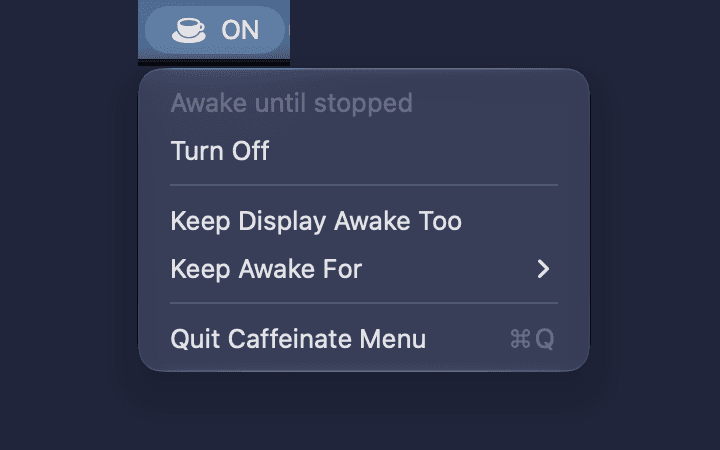
Awake when you need it.
On and off in one click
Click the cup in the menu bar and choose Turn On. The cup fills and shows ON while your Mac is being kept awake.
Stay awake for as long as you need
Keep your Mac awake until you stop it, or for 30 minutes, 1 hour, 2 hours, or 4 hours. The menu shows the time remaining.
Keep the display awake too
By default only idle system sleep is prevented, so the display can still turn off. Turn on Keep Display Awake Too when you need the screen to stay on.
Ends when you quit
Sleep prevention stops when you turn it off or quit the app, including a force quit. Your display and duration choices are remembered.
Up and running in a few steps.
- Download the disk image and double-click it to open.
- Drag Caffeinate Menu onto the Applications shortcut.
- Open Caffeinate Menu from Applications, then click the cup in the menu bar and choose Turn On.
The app and disk image are Developer ID signed and notarized by Apple. macOS may ask you to confirm the first launch.
To open it at login, add it in System Settings → General → Login Items & Extensions. It starts turned off.
Good to know.
Caffeinate Menu prevents idle sleep. It does not stop sleep from closing a laptop lid or choosing Sleep from the Apple menu.
It lives in the menu bar only, with no Dock icon, and needs no permissions. It has no analytics, account requirement, or network access.
Release details
Release details & checksum
- Version
- 1.0.0 (build 1)
- Compatibility
- macOS 13.0+ · Apple Silicon and Intel
- Release notes
- First public release. Caffeinate Menu keeps your Mac awake from the menu bar. Turn it on until stopped or for 30 minutes, 1, 2, or 4 hours, and optionally keep the display awake too. Sleep prevention ends when you turn it off or quit the app.
- SHA-256
2a4a7f6aa221eacb72bbe71ad461b4297db77b571f0a017694f5b7a43cc23327
Need help? Contact DorDev.